
MT Manager is an Android utility app for APK editing, XML, ARSC, and DEX work, plus file and ZIP tools. Lin Jin Bin made it, and it also includes text, image, and script tools. If you want to customize installed apps, root access matters.
What Is MT Manager and Its Core Functions
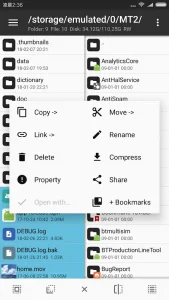
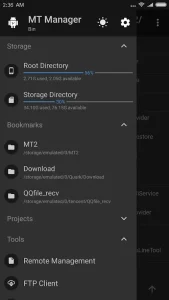
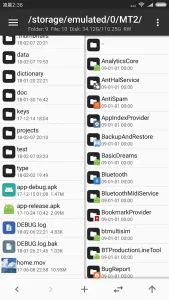
MT Manager is an Android utility app made by Lin Jin Bin, and it focuses on APK editor work. It includes an XML editor, an arsc editor, and a .dex editor for changing parts of apps. Beyond APK editing, it also acts like a file manager with extra tools like a text editor, image viewer, and script executor.
Why Users Choose MT Manager for Android Customization
People download MT Manager for Android customization because it gives direct editing tools for their installed apps. Root access unlocks system-level changes, and the app can clone and optimize apps, too. You also get options like removing signature verification and adding translations, which many people want for control and small fixes.
- Root helps you edit and customize apps beyond normal limits, including system work.
- APK editing lets you change things inside apps using XML, arsc, and .dex editors.
- Cloning and optimization help you copy an app and tweak it without starting from zero.
- Removing signature verification can remove checks that block certain edits.
- Adding translations lets you include language files instead of living with defaults.
- The file manager plus editing tools help you manage files, including ZIPs, in one place.
How MT Manager Boosts App Development Workflow
Developers use MT Manager as a workflow tool for APK editing by following a simple chain of edits. First, they edit app content using the .dex editor, the arsc editor, and the XML editor, which lets changes land in real code and resources. Next, they clone apps when they want a copy for testing or optimization. Then, they optimize the cloned app and adjust things like accessible limits and signature checks, depending on what they edit.
Key Features Delivered by MT Manager
MT Manager gives you a mix of APK editing and file handling in one Android app, but it depends on what file you work on. The tool includes APK editing, file management, and ZIP extraction, plus app cloning and system directory access when you have the right permission. With root, you can remount the file system as read-write and use built-in text, image, and script tools.
- APK editing, with XML, arsc, and .dex editor tools.
- File management, so you can open, move, copy, and delete files.
- ZIP handling, like opening ZIPs similar to WinRAR style workflows.
- App cloning and optimization for working on copies.
- Signature verification removal for fewer blocks during edits.
- System directory access, including remounting the file system as read-write.
- Built-in text editor, image viewer, and script executor for custom changes.
- Root dependency, since full access needs superuser permissions.
APK Editing with XML, ARSC, and DEX Editors
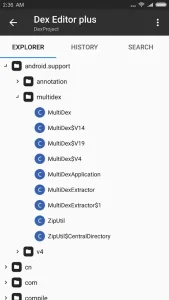
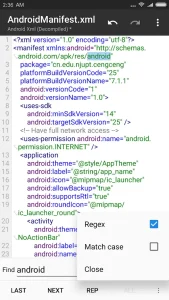
MT Manager includes three editor types that work together for APK changes, and each targets a different part of an app. You get an XML editor for readable config style changes, an arsc editor for app resource pieces, and a .dex editor for code parts. If you like tweaking apps directly, naming these editors matters because it tells you what you can change.
- XML editor for editing XML content inside APKs.
- arsc editor for working on resource files inside the app.
- .dex editor for changing code content in DEX files.
Advanced File Management and ZIP Extraction
The file manager in MT Manager lets you open files and handle them inside the app instead of switching tools. It can open any files, including ZIP files, and it supports actions like moving, copying, and deleting. Also, you can decompress files and add or replace external files, which is handy when you need to swap assets.
- Open any files, including ZIP files.
- Move, copy, and delete files from inside MT Manager.
- Decompress ZIP content and work with the extracted items.
- Add or replace external files during editing.
App Cloning, Optimization, and Signature Removal
MT Manager supports cloning, optimizing, and signature verification removal, which are three big moves people look for when customizing apps. The app can clone apps so you can work on a copy, then optimize that copy to fit what you want. Signature verification removal also shows up as part of the APK editing options described in the source.
- Clone apps to work on a copy of an existing app.
- Optimize apps as part of the editing process.
- Remove signature verification and related limitations during APK work.
System Directory Access and Read‑Write Remount
MT Manager connects to deeper system parts when you have root, and that’s where system directory access matters. With superuser permissions, it can access the system directory and help you remount the file system as read-write. That makes it possible to touch parts of the system files more directly than a normal file explorer would allow.
- Access the system directory with the right permission.
- Remount the file system as read-write when root is available.
- Use these steps to support deeper app and system modifications.
Built‑In Text, Image, and Script Tools
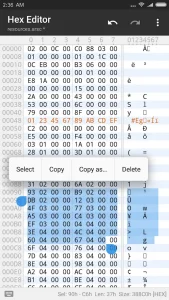
MT Manager also includes smaller built-in tools for edits that go beyond code swapping. It gives you a text editor, an image viewer, and a script executor, so you can inspect and adjust content while staying in the same app. That setup can save time since you don’t need a separate editor for every small change.
- Text editor for writing or changing text content.
- Image viewer to check image parts during edits.
- Script executor for running script-based changes.
Root Permission Dependent Functionality
Root access is needed for the full editing experience, especially when you want system directory changes. The source says the app can give you superuser permissions, and that unlocks editing capabilities like system app modifications, plus actions tied to read-write remounting. Without that, you can still use the tool for some APK editing tasks, but system level work depends on root.
Performance Considerations and Known Limitations
MT Manager sometimes crashes when you edit big app files, so file size can affect stability. The source also says security apps may tag it as a hacking tool during download, which can scare people before they even try it. Since performance depends on the file, start with smaller APKs if you want fewer headaches.
Pros and Cons of Using MT Manager
MT Manager comes with strong editing options, but it also brings a couple of real downsides people should expect. The source lists powerful editing and file management on the plus side, while crashes and security flags show up on the minus side. Root access also matters for full system work, so this isn’t a plug and play tool for everyone.
- Pros: powerful editing, file management, and no need to code for basic customization.
- Pros: built-in text, image, and script tools help you do more from your phone.
- Cons: occasional crashes when editing large app files.
- Cons: security apps may flag it as a hacking tool during download.
- Cons: you need root for full capability, especially for system changes.
Frequently Asked Questions About MT Manager
Safety is mixed, so you should watch for warning signs before you install it. The source says security apps may flag it as a hacking tool during download, and it can also crash when editing big app files. Root requirements add another risk level, since mistakes in system edits can cause issues.
Root gives you superuser permissions, and that’s what unlocks the full editing scope mentioned in the source. With superuser access, MT Manager can work on editing tasks tied to Dex and resource work like editing Dex, arsc, and XML. It also supports signing related actions, cloning apps, optimizing, and adding translations when root level access is possible.
MT Manager offers app cloning as a built-in capability, and it also supports optimization after cloning. The source does not spell out any specific data loss rules, but it does say you can clone and optimize apps as part of the workflow. So basically, cloning is the feature, but your exact results depend on what you clone and what you edit after.
Large APK editing can be shaky, because the source says the app sometimes crashes when editing big app files. That means stability depends on the file you choose, not just the tool itself. If you run into crashes, switching to smaller APKs usually makes the workflow more predictable.





Comments